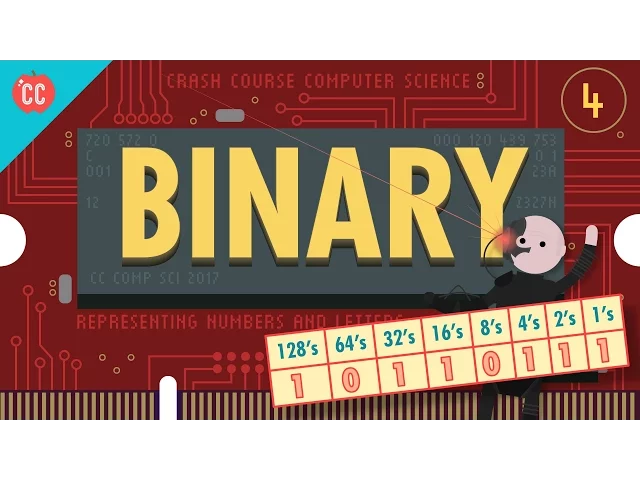
Representing Numbers and Letters with Binary: Crash Course Computer Science #4
CrashCourse
0:03 Hi I’m Carrie Anne, this is Crash Course Computer Science
0:06 and today we’re going to talk about
0:08 how computers store and represent numerical data.
0:10 Which means we’ve got to talk about Math!
0:12 But don’t worry.
0:13 Every single one of you already knows exactly
0:14 what you need to know to follow along.
0:16 So,
0:16 last episode we talked about how transistors can be used to build logic gates,
0:20 which can evaluate boolean statements.
0:22 And in boolean algebra, there are only two, binary values: true and false.
0:26 But if we only have two values,
0:27 how in the world do we represent information beyond just
0:29 these two values?
0:30 That’s where the Math comes in.
0:32 INTRO So, as we mentioned last episode,
0:43 a single binary value can be used to represent a number.
0:46 Instead of true and false,
0:48 we can call these two states 1 and 0 which is actually incredibly useful.
0:52 And if we want to represent larger things
0:54 we just need to add more binary digits.
0:55 This works exactly the same way as the
0:57 decimal numbers that we’re all familiar with.
0:59 With decimal numbers there are "only" 10 possible values a single digit can be;
1:03 0 through 9,
1:04 and to get numbers larger than 9 we just start adding more digits to the front.
1:07 We can do the same with binary.
1:09 For example, let’s take the number two hundred and sixty three.
1:12 What does this number actually represent?
1:14 Well, it means we’ve got 2 one-hundreds, 6 tens, and 3 ones.
1:18 If you add those all together, we’ve got 263.
1:21 Notice how each column has a different multiplier.
1:24 In this case, it’s 100, 10, and 1.
1:27 Each multiplier is ten times larger than the one to the right.
1:30 That's because each column has ten possible digits to work with,
1:33 0 through 9, after which
1:35 you have to carry one to the next column.
1:37 For this reason, it’s called base-ten notation,
1:39 also called decimal since deci means ten.
1:42 AND Binary works exactly the same way, it’s just base-two.
1:45 That’s because there are only two possible digits in binary– 1 and 0.
1:49 This means that each multiplier has to be two
1:51 times larger than the column to its right.
1:53 Instead of hundreds, tens, and ones, we now have fours, twos and ones.
1:57 Take for example the binary number: 101.
2:00 This means we have 1 four, 0 twos, and 1 one.
2:04 Add those all together and we’ve got the number 5 in base ten.
2:07 But to represent larger numbers, binary needs a lot more digits.
2:10 Take this number in binary 10110111.
2:12 We can convert it to decimal in the same way.
2:14 We have 1 x 128, 0 x 64, 1 x 32, 1 x 16, 0 x 8, 1 x 4, 1 x 2, and 1 x 1.
2:24 Which all adds up to 183.
2:26 Math with binary numbers isn’t hard either.
2:29 Take for example decimal addition of 183 plus 19.
2:32 First we add 3+ 9, that’s 12,
2:34 so we put 2 as the sum and carry 1 to the ten’s column.
2:37 Now we add 8 plus 1 plus the 1 we carried, thats 10, so the sum is 0 carry 1.
2:43 Finally we add 1 plus the 1 we carried, which equals 2.
2:46 So the total sum is 202.
2:48 Here’s the same sum but in binary.
2:50 Just as before, we start with the ones column.
2:52 Adding 1+1 results in 2, even in binary.
2:55 But, there is no symbol "2" so we use 10 and put 0 as our sum and carry the 1.
3:00 Just like in our decimal example.
3:02 1 plus 1, plus the 1 carried, equals 3 or 11 in binary,
3:05 so we put the sum as 1 and we
3:08 carry 1 again, and so on.
3:09 We end up with 11001010, which is the same as the number 202 in base ten.
3:14 Each of these binary digits, 1 or 0, is called a “bit”.
3:17 So in these last few examples,
3:18 we were using 8-bit numbers with their lowest value of zero
3:21 and highest value is 255, which requires all 8 bits to be set to 1.
3:26 Thats 256 different values, or 2 to the 8th power.
3:30 You might have heard of 8-bit computers, or 8-bit graphics or audio.
3:34 These were computers that did most of their operations in chunks of 8 bits.
3:38 But 256 different values isn’t a lot to work with,
3:40 so it meant things like 8-bit games
3:42 were limited to 256 different colors for their graphics.
3:46 And 8-bits is such a common size in computing, it has a special word: a byte.
3:51 A byte is 8 bits.
3:53 If you’ve got 10 bytes, it means you’ve really got 80 bits.
3:55 You’ve heard of kilobytes, megabytes, gigabytes and so on.
3:58 These prefixes denote different scales of data.
4:01 Just like one kilogram is a thousand grams, 1 kilobyte is a thousand bytes….
4:05 or really 8000 bits.
4:07 Mega is a million bytes (MB), and giga is a billion bytes (GB).
4:11 Today you might even have a hard drive that has 1 terabyte (TB) of storage.
4:15 That's 8 trillion ones and zeros.
4:17 But hold on!
4:18 That’s not always true.
4:19 In binary, a kilobyte has two to the power of 10 bytes, or 1024.
4:24 1000 is also right when talking about kilobytes,
4:26 but we should acknowledge it isn’t the only
4:28 correct definition.
4:29 You’ve probably also heard the term 32-bit
4:32 or 64-bit computers– you’re almost certainly
4:34 using one right now.
4:35 What this means is that they operate in chunks of 32 or 64 bits.
4:39 That’s a lot of bits!
4:40 The largest number you can represent with 32 bits is just under 4.3 billion.
4:45 Which is thirty-two 1's in binary.
4:47 This is why our Instagram photos are so
4:49 smooth and pretty– they are composed of millions
4:52 of colors, because computers today use 32-bit color graphics
4:56 Of course, not everything is a positive number- like my bank account in college.
5:00 So we need a way to represent positive and negative numbers.
5:03 Most computers use the first bit for the sign:
5:05 1 for negative, 0 for positive numbers, and
5:08 then use the remaining 31 bits for the number itself.
5:11 That gives us a range of roughly plus or minus two billion.
5:14 While this is a pretty big range of numbers, it’s not enough for many tasks.
5:17 There are 7 billion people on the earth,
5:20 and the US national debt is almost 20 trillion dollars after all.
5:23 This is why 64-bit numbers are useful.
5:25 The largest value a 64-bit number can represent is around 9.2 quintillion!
5:30 That’s a lot of possible numbers and will hopefully
5:32 stay above the US national debt for a while!
5:34 Most importantly, as we’ll discuss in a later episode,
5:37 computers must label locations
5:38 in their memory, known as addresses, in order to store and retrieve values.
5:43 As computer memory has grown to gigabytes and terabytes– that’s trillions of
5:46 bytes– it was necessary to have 64-bit memory addresses as well.
5:50 In addition to negative and positive numbers,
5:52 computers must deal with numbers that are
5:53 not whole numbers, like 12.7 and 3.14, or maybe even stardate: 43989.1.
6:00 These are called “floating point” numbers,
6:02 because the decimal point can float around
6:04 in the middle of number.
6:05 Several methods have been developed to represent floating point numbers.
6:08 The most common of which is the IEEE 754 standard.
6:11 And you thought historians were the only people bad at naming things!
6:14 In essence,
6:15 this standard stores decimal values sort of like scientific notation.
6:19 For example, 625.9 can be written as 0.6259 x 10^3.
6:25 There are two important numbers here: the .6259 is called the significand.
6:30 And 3 is the exponent.
6:31 In a 32-bit floating point number,
6:32 the first bit is used for the sign of the number— positive
6:35 or negative.
6:36 The next 8 bits are used to store the exponent
6:39 and the remaining 23 bits are used to store
6:41 the significand.
6:42 Ok, we’ve talked a lot about numbers,
6:44 but your name is probably composed of letters,
6:46 so it’s really useful for computers to also have a way to represent text.
6:49 However, rather than have a special form of storage for letters,
6:53 computers simply use numbers to represent letters.
6:56 The most straightforward approach might be to
6:57 simply number the letters of the alphabet:
6:59 A being 1, B being 2, C 3, and so on.
7:02 In fact, Francis Bacon, the famous English writer,
7:05 used five-bit sequences to encode
7:07 all 26 letters of the English alphabet to
7:09 send secret messages back in the 1600s.
7:11 And five bits can store 32 possible values– so that’s enough for the 26 letters,
7:16 but not enough for punctuation, digits, and upper and lower case letters.
7:20 Enter ASCII, the American Standard Code for Information Interchange.
7:24 Invented in 1963, ASCII was a 7-bit code, enough to store 128 different values.
7:29 With this expanded range,
7:30 it could encode capital letters, lowercase letters, digits
7:33 0 through 9, and symbols like the@ sign and punctuation marks.
7:37 For example, a lowercase ‘a’ is represented by the number 97,
7:40 while a capital ‘A’ is 65.
7:42 A colon is 58 and a closed parenthesis is 41.
7:45 ASCII even had a selection of special command codes,
7:48 such as a newline character to tell
7:49 the computer where to wrap a line to the next row.
7:52 In older computer systems,
7:53 the line of text would literally continue off the edge of the
7:56 screen if you didn’t include a new line character!
7:59 Because ASCII was such an early standard,
8:01 it became widely used, and critically, allowed
8:02 different computers built by different companies to exchange data.
8:06 This ability to universally exchange information is called “interoperability”.
8:10 However, it did have a major limitation:
8:12 it was really only designed for English.
8:15 Fortunately, there are 8 bits in a byte,
8:17 not 7, and it soon became popular to use codes
8:19 128 through 255, previously unused, for "national" characters.
8:25 In the US, those extra numbers were largely used to encode additional symbols,
8:29 like mathematical notation, graphical elements, and common accented characters.
8:33 On the other hand,
8:34 while the Latin characters were used universally, Russian computers used
8:37 the extra codes to encode Cyrillic characters,
8:39 and Greek computers, Greek letters, and so on.
8:42 And national character codes worked pretty well for most countries.
8:45 The problem was,
8:45 if you opened an email written in Latvian on a Turkish computer, the result
8:49 was completely incomprehensible.
8:51 And things totally broke with the rise of computing in Asia,
8:54 as languages like Chinese and Japanese
8:56 have thousands of characters.
8:58 There was no way to encode all those characters in 8-bits!
9:00 In response, each country invented multi-byte encoding schemes,
9:04 all of which were mutually incompatible.
9:06 The Japanese were so familiar with this encoding problem
9:09 that they had a special name for it:
9:11 "mojibake", which means "scrambled text".
9:13 And so it was born– Unicode– one format to rule them all.
9:17 Devised in 1992 to finally do away
9:19 with all of the different international schemes
9:21 it replaced them with one universal encoding scheme.
9:23 The most common version of Unicode uses 16
9:26 bits with space for over a million codes-
9:28 enough for every single character from every language ever used–
9:32 more than 120,000 of them in over 100 types of script
9:36 plus space for mathematical symbols and even graphical characters like Emoji.
9:40 And in the same way that ASCII defines
9:41 a scheme for encoding letters as binary numbers,
9:43 other file formats– like MP3s or GIFs– use
9:46 binary numbers to encode sounds or colors of a pixel in our photos,
9:50 movies, and music.
9:50 Most importantly, under the hood it all comes down to long sequences of bits.
9:55 Text messages, this YouTube video,
9:57 every webpage on the internet, and even your computer’s
10:00 operating system, are nothing but long sequences of 1s and 0s.
10:03 So next week,
10:04 we’ll start talking about how your computer starts manipulating those
10:07 binary sequences, for our first true taste of computation.
10:10 Thanks for watching.
10:12 See you next week.