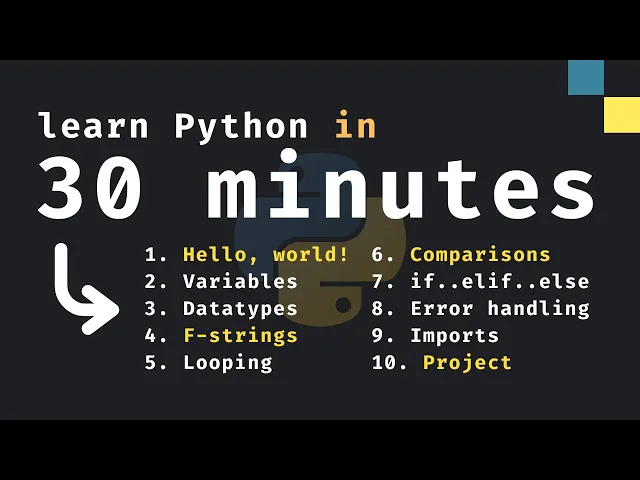
Learn Python in Only 30 Minutes (Beginner Tutorial)
Indently
0:00 this video was brought to you by IND dentle IO
0:03 learning python Made Simple how's it going everyone about 4
0:07 years ago I made a python crash course which recently
0:10 blew up and I thought 4 years is a lot of time so it's time to make an updated
0:15 course and this video will be useful if you are
0:17 a beginner the only two requirements I have for this video
0:20 is that you have python installed and you have
0:23 your own code editor installed for this tutorial I'm
0:26 going to be using pycharm it's completely free and you
0:29 can find it on the jet brains website anyway let's
0:33 get started the very first thing we're going to learn
0:35 is how to run our very first script so here
0:38 we're going to type in one of the most popular
0:40 commands in any programming language and that is print hello
0:44 world as you can see I'm using some quotation marks
0:47 followed by some text and this is important when
0:50 you want to insert text into Python and with print
0:54 we can finally run this script by tapping on the Green
0:56 Arrow and you'll see that inside the console we're
0:59 going to get this as an output so we essentially
1:02 told python to display this information and we can change
1:05 this to anything we like we can even type
1:07 in hello Bob and I'm using a shortcut which is command
1:10 plus r to run my scripts if that doesn't work
1:13 for you you're going to have to go to settings
1:16 then go to the key map and type in run
1:20 then inside here you'll find a section called run
1:24 and debug and what you want to select is
1:26 the Run feature and assign it your own shortcut anyway I'm
1:31 going to be using that shortcut from now on so
1:33 here we can change the text to whatever we like
1:35 but it would be so much nicer if we
1:37 could edit this in another place so what we're going
1:39 to do next is create a variable and here we're
1:42 going to call this variable name and the name is
1:45 going to be set to Bob so now all we
1:47 need to do is replace this section here with this variable
1:50 and to do that I'm going to remove Bob
1:52 I'm going to type in plus name plus exclamation mark
1:56 and this is going to perform a string concatenation
1:59 which means name is going to be added to hello
2:02 and the exclamation mark will be added to name which
2:04 means now when we run this we're going to get
2:06 hello Bob and it would be nice if we had
2:08 a space there but what's nice about this approach is
2:11 that if we were to duplicate this line and we
2:13 were to change this to James name will always stay
2:15 up to date with the name that we defined
2:18 here so now it's going to print hello James hello
2:20 James without us having to type in James twice variables
2:24 are great for reusability and it makes writing code so
2:27 much easier anyway moving on I want to talk about
2:30 the data types we have in Python because up until
2:33 now we've been working with strings and strings are just
2:37 text but we have many other data types so let's
2:40 take a look at all of them so as I
2:41 mentioned the first data type we encountered was a string
2:44 which is just some text so for example here we
2:47 can have some text which contains the value of Apple
2:50 then a number is referred to as an integer
2:53 in Python and that can be any whole number so 10
2:56 or- 10 that is an integer if you want
2:59 to have a decimal this is referred to as a float
3:02 and that's any decimal number so 10.5 or 10123
3:08 that's going to be considered a float then we have
3:11 something called a Boolean which is either true or false
3:15 so for example has money can be set to false
3:18 with a capital f and again this only has
3:21 two states false and true next we have something called
3:25 a tuple and a tuple looks like this 2.5 comma
3:30 1.5 it's just a list likee structure which you cannot
3:34 change after you create it so this contains two
3:37 coordinates but you can even add more coordinates you can
3:39 add I don't know 1.0 now it will contain three
3:42 coordinates then we have a list and here we're going
3:45 to create a variable called names and that's going
3:47 to contain agneta bej Benny and anif Fred and to create
3:52 a list you just need to use square brackets
3:54 and this data is mutable which means we can remove elements
3:57 and add elements unlike with tpls where the data is
4:01 immutable which means once again once we create this we
4:03 cannot change it next we have something that's called
4:06 a set so here we're going to type in unique
4:10 we're going to add 1 2 3 4 4 5 now the reason I called this unique is because
4:17 a set cannot contain duplicates I mean you can insert
4:20 duplicates but as soon as you print this to the console
4:24 you'll notice that the duplicate of four will disappear so
4:28 it's another list-like structure that cannot contain duplicates and finally
4:32 we have something that's called a dictionary and a dictionary
4:35 is a list-like structure that holds key value pairs
4:39 for example here we might have a user called Bob
4:42 with the value of one or the ID of one and James with the ID of two as you can
4:49 see each element contains a key and a value so
4:52 both of these are associated with each other and that's
4:55 one element in the dictionary sometimes in Python you're
4:58 going to be presented with one data type which
5:00 you're going to want to convert into another data type
5:03 for example sometimes you're going to try to scrape some
5:06 information from the internet and what you're going to get
5:09 back is let's say a number in the form
5:12 of a string now the problem with this is that you
5:15 can't use it as a regular integer with a regular
5:18 integer you can do 10+ 10 for example and that will
5:21 give us back 20 but if we were to do 10 plus number we're going to get an error
5:28 because this type can only be added with other
5:30 strings so in Python you can attempt to convert any
5:34 data type into another data type by using the type
5:38 Constructor and a type Constructor is literally just the type
5:41 you want to turn it into followed by a pair
5:43 of parentheses so here we're attempting to convert number
5:46 into an integer and that's going to work perfectly fine
5:49 because 100 is actually a number if we were to type
5:53 in 10 it's going to give us a value
5:55 error because 10 is not an integer it is text
6:00 that represents the number 10 that only a human can
6:03 understand so for this to work we need to add
6:06 an actual number and as I mentioned earlier you just
6:10 need to pass in the type you want to convert
6:12 it to so it can be a string or a float or a set whatever data type you want
6:18 to convert this variable into you just put the data
6:21 type in front of it followed by parentheses and I
6:24 mean you don't have to actually use a variable you
6:27 can absolutely type it in directly here 1 2 3.
6:31 456 and this will convert this string into a float
6:36 now a very good practice for writing code
6:38 is using type annotations this is something I want
6:41 to teach you as early on as possible because it's
6:45 going to save you a lot of trouble
6:47 in the future but in Python it's not required you
6:50 can type in something such as age is equal
6:52 to the integer value of 10 but something you'll see
6:55 me doing in all of my lessons is annotating
6:57 it with the data type here I'm explicitly telling
7:00 python that I want this to be of type
7:03 integer and we might even have something called first name
7:05 which will be of type string and that's going
7:07 to equal Bob these are type annotations and they tell
7:11 the code editor or the static type Checker what
7:15 we're trying to do here python is going to ignore
7:17 these which means that if we were to type
7:20 in age of typ string equals 10 we're still going to be able to run this code
7:24 with no problems but what you're going to notice is
7:26 that the code editor is going to tell us that we messed up up so this is a tool
7:31 used for the developer it tells us when we're making
7:33 mistakes without this type annotation we can add 10 here
7:36 we can add a string here we can add whatever we want and we're not going to get
7:40 any errors because age can be literally anything
7:44 but by providing the information that AG should be of type
7:47 integer we will get some warnings that we're doing
7:50 something silly here so that we'll have the chance
7:52 to actually correct it so you're going to see me
7:54 using type annotations everywhere it's not required but I prefer
7:58 to do this because I think it's professional
8:00 and it saves me a lot of effort anyway here
8:03 I'm going to remove the first part of name
8:05 because for the next example I want to teach you
8:08 a very convenient concept called f strings because earlier
8:12 I showed you that we could do something such
8:14 as name plus name plus age plus age and we
8:18 need to make sure that this is actually a string
8:22 so what we have to do here is convert that to a string and with that when we run
8:25 this we will get some nice output such as this one
8:28 name of Bob age of 10 but this took
8:31 a lot of effort and is not intuitive we want to be able to write this in a much
8:36 more fluent way and luckily python provides us
8:39 with the opportunity to use f strings in these situations
8:43 which makes creating complex strings such as this one
8:46 a lot easier so instead of doing all of that what we're going to do is print F
8:51 and quotation marks and the F here stands for format
8:54 and FST string is a formatted string also just
8:57 to digress real quickly you're not required to only
9:00 use single quotation marks that's just a simple preference
9:02 of mine you can also use double quotation marks if
9:05 you want that's up to you I just got
9:07 accustomed to using single quotation marks because I think
9:10 it looks cleaner but now with that we can
9:12 type in name and using curly brackets we can insert
9:15 variables directly so name and then age age this was
9:19 just so convenient to type compared to the other
9:22 string that we tried to concatenate and watch what
9:25 happens when we run it it's going to run exactly
9:28 the same way or I mean the output is
9:30 going to be exactly the same so I recommend using
9:32 FST strings whenever you can because this is just
9:34 hard to keep track of you won't see many professional
9:37 python developers using this moving on it's time we
9:40 learn about functions and functions are used to make
9:44 our code much more reusable just like with variables
9:48 and to create a function in Python we use the def
9:51 keyword which stands for definition or Define and immediately
9:54 after that you add a function name so here
9:57 we're going to create a function that takes two
9:59 inputs or two arguments A and B and then it's
10:03 going to add those together so a is going to be of type float and B is going
10:08 to be of type float as well now using
10:10 this Arrow we can tell python what we expect to return
10:14 and here we expect to return a float because
10:16 adding a to B will return a float then
10:19 inside here we can return A+ B and with that being
10:23 done we can print add 10 to 15 then we can duplicate this and say 15 to 30
10:30 and when we run that we're going to get
10:32 the sum of both of those operations and what's
10:35 great about this is that we can reuse this function
10:38 anywhere in our script as many times as we like and it is as simple as that now
10:44 you might be asking why didn't we just do
10:45 10+ 15 and 15+ 30 well this works perfectly fine
10:50 but imagine we want to change something in the implementation
10:54 of the function if we want to add some
10:56 other code in here we're going to have to do
10:57 it manually for each one of these but now let's go back to what we had earlier
11:02 and inside the function what we're going to do is
11:05 print that we are adding and I want to make
11:07 this an FST string A+ B here we added a line of code and this change will be
11:14 added to each function call as you can see
11:17 now we have adding 10+ 15 and adding 15+
11:20 30 so any change we bring to the function will
11:23 be added to each function call which is very
11:26 convenient but let's take a look at another example
11:28 and this example we're going to create a function
11:31 called greet which will take a name of typ string
11:34 and a greeting of typ string and this will
11:36 return none this time because we are only executing code
11:40 so print the F string of greeting comma name
11:44 and what's great about this is that we can type
11:46 in greet followed by the name and the greeting
11:50 and now when we run this we're going to get
11:51 our simple greeting back but something else I want
11:54 to show you is that we can also Define
11:56 default values by using the equal sign Direct directly
11:59 on the parameter and this will make it so
12:01 we don't have to define a greeting each time
12:04 we use the function which means the next time we
12:06 can type in James and it won't require us
12:08 to actually Supply a greeting as you can see
12:11 it's going to say hi James because hi was
12:13 the default for greeting and we can also do
12:15 that with Bob once again the default will be
12:17 used once again because we did not include greeting
12:20 as an argument and I don't know if this was
12:22 obvious or not but I'm just going to go over it
12:25 anyway when you're creating a function you're not required
12:28 to add any parameters is you can just say
12:30 it's a function that executes some code such as hello
12:34 then you can just call that function as many
12:36 times as you want and it will execute that code
12:39 each time and once again type annotations are optional
12:42 they do not affect how your code is run
12:44 but help the code editor with understanding what you're trying
12:47 to do now that we understand how functions work
12:50 let's move on to looping in Python and in Python
12:53 we have two different kinds of Loops one is
12:57 the for Loop and one is the while loop
13:00 for Loops are used for finite looping while while
13:03 Loops are used for infinite looping so let's take
13:06 a look at a couple of examples to see
13:08 the difference and how they actually work and first I'm going
13:11 to start with the for Loop so to create
13:14 a for Loop we use the for keyword and here
13:16 we can add a variable name which in general is going to be set to I if you're
13:20 just going through a range so here we're going
13:22 to type in for I in range three print hello
13:27 and range is going to create a r range
13:29 of three numbers which means it's going to loop three
13:32 times and once we run this you'll notice
13:34 that it's going to say hello three times if we
13:36 change this to five it's going to Loop through
13:39 the range of five numbers and it's going to print
13:42 hello five times and usually you'll see four Loops
13:45 being used a lot with lists for example earlier we
13:49 had this list of names with a for Loop
13:52 we can say forame in names print hello and we'll
13:58 change that to an FST string followed by the name
14:02 so this is going to grab each name from that list and use it for each iteration
14:07 which means now when we actually run this we're going
14:09 to get hello anetta hello be hello Benny
14:12 and hello anaf so as you can see for Loops
14:15 are always used with a finite list of elements
14:19 and it doesn't have to be one statement you can
14:21 even add two statements you can say dot dot dot as you can see now we have two
14:26 lines of code inside this for Loop and it
14:28 will be executed four times because this list contains four
14:32 elements anyway moving on we have the while loop
14:35 as I mentioned earlier the while loop is infinite
14:38 which means if we were to type in while
14:40 true print hello this will be executed for as long
14:43 as your computer exists as you can see there's
14:46 no end to this condition true is true forever
14:50 which means python will execute this code over and over
14:53 again until the end of all things so right
14:55 there I force stopped the script because there's no
14:58 point in having that run forever usually with while Loops
15:01 you're going to have some sort of condition such
15:04 as while I is less than three and this is
15:06 a condition which will eventually turn false we actually
15:09 need to create that above so I of type integer
15:12 will equal zero now here we can print I
15:14 and for each iteration we're going to type in I+
15:17 1 or i+= 1 so I is going to increment one on each Loop meaning that one day
15:24 this is going to become three which is not less
15:27 than three and once this evaluates to false it's going
15:29 to exit out of this while loop as you can see now when we run this we're going
15:34 to have zero printed one printed two printed but as soon
15:37 as I contains the value of three this statement
15:40 or this expression evaluates to false which means
15:43 the while loop will no longer continue with its Loops
15:46 now up next we're going to talk about these comparison
15:49 operations because there are quite a few that you're
15:51 going to have to memorize and in this example
15:54 I'm going to have two integers one called
15:56 a and one called B and one will contain
15:58 the value of one and the other one the value
16:00 of two and I'm going to type these out
16:02 real quick because they are self-explanatory the first check we're
16:05 going to do is whether a is more than b or greater than b and we do that using
16:10 the right arrow we can also check that a is greater than or equal to B so if
16:15 a contains the value of B it's also going
16:18 to evaluate to True right now if we were to run
16:20 this we're going to get false for both of them
16:22 because a is not greater than b but if
16:24 we add two here the first expression is going
16:27 to evaluate to false because a is not greater than B it's exactly the same as B
16:32 but with greater than or equals to this will evaluate
16:35 to true because a is equal to b anyway
16:38 this also works in the opposite sense so you can check
16:41 that a is less than b or whether a is less than or equal to B and that's going
16:46 to work exactly the same way something else we
16:48 can do is check whether a is equal to B
16:50 whether these two contain the exact same value right
16:53 now if we R to run this we're going
16:54 to get false because 1 is not equal to two but if we insert two we will get true
16:59 as a return and we can also do the opposite
17:02 here we can check that a is not equal
17:04 to B by using the exclamation mark and just
17:06 like that we're going to get true as an output because a is not equal to B so
17:11 these are the comparison operations that you should memorize because
17:14 you'll be using them a lot throughout your programming
17:17 career up next we're going to be talking about if
17:20 L if and else which is used for control
17:23 and flow logic now for this example we're going
17:26 to simulate that we're getting some user input so
17:28 here we'll type in user input of type string is
17:31 equal to hello now if the user input is
17:34 equal to hello we will print that the bot
17:36 says hello L if the user input is equal to how are you we will say that the bot
17:43 says good how about you and in every other
17:48 situation we're going to use the else block so
17:50 if what we type in doesn't match any
17:53 of these conditions the else block is going to be executed
17:56 and here we can print that the bot says
17:58 so sorry I did not understand that and just like
18:03 that we can try running this script and what
18:05 we should get as an output is that the bot
18:07 says hello otherwise if we change this to how
18:10 are you the bot should respond good how about you
18:14 and if we type in something random you'll see
18:17 that the bot will not understand what we wrote so
18:20 with if you can add any expression that you
18:22 want to check for and this code will only
18:24 be executed if this evaluates to True L if
18:28 stands for else if which means if this doesn't pass
18:32 it's going to try to check whether this will
18:34 pass and if it does pass it will execute
18:36 this code else will be executed in any other situation
18:39 and what's important to note is that you can have
18:41 as many l if statements as you want so
18:43 you can also check that user input is equal
18:46 to buy then the bot can say goodbye now
18:49 when we actually enter buy as an input the bot's
18:53 going to be able to respond with goodbye now
18:55 if you want to see something really cool all we
18:57 need to do here is type in inputs followed
19:00 by U which is the prompt we want the user
19:02 to see and add a while true Loop here then we need to indent all of this inside
19:08 the while true Loop to make it a block
19:10 of code and with those two simple changes we now
19:13 have our very first chat bot we can type
19:16 in hello the bot's going to respond if it finds
19:19 that if we type in by it'll say goodbye
19:21 if we say something random the bot's going to say
19:24 sorry I did not understand that it was
19:26 that simple to create a chat bot in in Python
19:30 moving on it's time we talk about exceptions in Python
19:33 what to do when you encounter one and how
19:36 you can handle it properly because sometimes you're going
19:38 to type in something weird such as print whatever
19:41 that is and you're going to end up
19:43 with an exception or an error such as a name error
19:47 now in recent versions of python you're going
19:49 to get very descriptive error messages which help you understand
19:52 what you did wrong but of course it would
19:54 be nice to learn how to handle these exceptions because
19:56 the one that we just encountered was was caused
19:59 by the developer but there are going to be some
20:01 that might be caused by the user for example
20:03 imagine we have two variables A and B and I'm
20:07 going to be using the multiple assignment syntax which
20:10 means we can type in 10 comma and the second
20:13 variable and this will assign 10 to a and 15 to B on one line but for whatever
20:18 reason Let's Pretend the user entered 15 now if
20:21 we were to add a plus b we're going
20:23 to end up with an exception because you cannot add
20:26 a string to an integer it is an unsupported operant
20:30 type int and string just do not go together
20:32 but for whatever reason that's what the user input
20:36 now if your user ever sees an exception message
20:39 it's probably a bad thing and that can even lead
20:42 them to uninstalling your app if it happens too
20:44 frequently even if they're in the wrong it's important
20:47 to act as an adult when you are programming
20:50 and to give the user a chance to fix their behavior
20:53 for example instead of just printing a plus b
20:55 what we're going to do is type in try
20:57 which means we're going to try try this dangerous
20:59 code and if it doesn't work we're going to accept
21:02 exception as e and here we're going to print
21:05 that something went wrong and we're going to insert e
21:09 which is the error now the next time we
21:11 run this we're not going to get an exception anymore
21:14 we're going to get an error message instead which
21:16 means we can actually run more code under this try
21:18 and accept block here we can type in continueing
21:22 with the program as you can see when we
21:24 run this it's going to be able to continue
21:26 with the program even if we encounter exception without
21:29 this the program is just going to crash and we're
21:32 never going to reach the rest of the program
21:34 so let's go back to what we had earlier
21:37 here we can type in something else such as please
21:39 enter a valid number so that the next time
21:43 the user inserts the text of 15 and tries
21:46 to add it to 10 the exception is going to tell them exactly what they need to do
21:50 to fix it anyway that is the basic concept
21:53 of handling an exception now what I did here is considered
21:57 a bad practice because exception handles all of the exceptions
22:01 when what we really wanted to do is handle the type error so as you can see we
22:05 can be much more specific with our exceptions and here
22:09 we can type in something such as please enter a number in the form of an integer
22:16 or a float so now we're catching the correct error
22:19 and giving them the correct message for that error which
22:22 means that once they run the program and they
22:24 add this silly input it's going to ask them
22:26 to please enter the number in the form of an integer
22:29 or a float which means now we can change
22:31 this to 10.5 or actually to stay consistent we'll
22:33 just type in 15 and it's going to work properly
22:36 the next time they use that as an input
22:38 and one last thing to note is that you can
22:40 add multiple accept blocks so you can actually handle
22:44 all the other errors just by adding another except
22:47 block something else went wrong because sometimes certain operations
22:52 are going to lead to multiple errors but once again
22:55 I never recommend using exception as e unless it's
22:59 really just a last resort because this exception will absorb
23:03 all of the errors and one thing you need
23:05 to learn in programming is that encountering errors and exceptions
23:08 is not a bad thing when you are developing
23:10 in fact you want to encounter as many as possible
23:14 because this will lead to more consistent code when
23:16 you're actually publishing your application it's going to help
23:19 you understand everything that can actually go wrong
23:22 and this approach just silently absorbs that error and makes it
23:26 disappear so once again use this as a last
23:29 resort now very quickly I want to talk about Imports
23:32 in Python because sometimes you're going to want to import
23:35 some external functionality into your script so that you
23:38 can use it for example imagine you want
23:40 to calculate the square root of a number now personally
23:43 I'm no mathematician so I prefer to use pre-made
23:46 functionality to perform that calculation and in Python we can
23:49 import a module called math and what's good about
23:52 this is that we can use a lot of its
23:54 functionality for free just by importing it and coincident
23:58 L it has a square root function so here
24:00 we can calculate the square root of three using
24:02 the square root function and once we run it we're
24:05 going to get the square root of three we
24:07 can also import math using an alias so for example
24:11 import math as M now we can print M
24:14 do square roots of four and it's going to work
24:16 exactly the same way except we're using the Alias
24:19 this time and finally if you really want to be
24:21 specific with your Imports you can import from math
24:24 the square root function and this time we just
24:26 type in square root and five and it will work out of the box just by referring
24:30 to the function name and just so you know
24:32 with the third approach you can add as many as you
24:34 want you can even add let's say tan which
24:37 will return the tangent so we can type in tan
24:39 of let's say two and that will work just
24:42 fine just by referring to the name now to end
24:44 this crash course we're going to be creating a simple
24:47 project and this is actually one of my favorite
24:50 projects to make and this is a chat bot
24:53 a very simple chat bot so first we're going
24:55 to create a bot name of typ string which
24:57 is going to equal Bob then the first message
25:00 is going to be a print statement that says
25:03 hello I'm bot name how can I assist you today
25:08 and once we see that message we will start
25:11 our while true Loop which is an infinite Loop
25:14 and the very first thing we want to do is
25:15 take some user input which will be of type string
25:19 and that's going to equal input with u
25:21 and since this returns a string we're going to want
25:24 to lower whatever the user enters and the reason we're
25:27 doing that is because if the user types in hello
25:30 with an uppercase H and we're trying to compare
25:32 that to hello with a lowercase H this is
25:35 going to return false because python is case sensitive
25:39 and a capital h and a lowercase H are two
25:43 different things now when you use the lower method
25:46 on hello it turns all of the letters inside this string
25:49 to lowercase which makes it much easier to compare
25:52 the two anyway if user input is in the list
25:57 of high hi or hello then we will print that the bot name says hi there how can
26:04 I help you L if the user input is in by or CU we will print that the bot
26:12 name says goodbye have a great day and as you
26:15 can see here I'm checking that the user
26:17 input is inside this list of strings which I
26:20 find to be more convenient than checking for each one
26:24 separately because it's nice to be able to understand
26:27 multiple form of input but let's also add some
26:30 functionality so L if use a input in Plus
26:35 or add then let's make it so our bot can
26:38 actually perform some mathematical operations print bot name says
26:43 sure let's let's do some addition please enter two
26:50 numbers and now comes the fun part what we need to do here is try to first get
26:55 the first number which will be number one of type
26:58 type float and that's going to equal the input
27:01 of the first number and as you can see
27:03 the code editor is telling us immediately that we got
27:06 a string but we were expecting a float
27:09 and thanks to this type annotation we can fix
27:11 that by surrounding this with the float Constructor then we're
27:14 going to duplicate this and say number two and type
27:17 in second number and if that works we're going
27:20 to print the F string with the bot name that says
27:24 the sum is number one plus number two and if
27:28 it doesn't work we're going to add the except
27:30 block and the main exception we can encounter here
27:33 is the user adding or inputting a letter or some
27:37 sort of symbol that is not a number and that's going to give us a value error so
27:41 here we can print that the bot name says
27:44 oops that doesn't seem like a valid number try again
27:51 then we're just going to get out of this accept
27:53 block and go to the outermost layer where we
27:56 have the if and we're going to add the else block and this is going to cover all
28:02 of the cases that we did not cover Above
28:05 So else print that the bot name says I'm sorry
28:10 I don't understand that please try again and in only
28:16 20 lines of code we created our very first
28:19 chatbot so now it's actually time to test that it
28:21 works so here I'm going to run the script
28:23 and I'm probably going to make that bigger so
28:25 we can see and and I'm just going to type
28:28 in high as I mentioned earlier the bot is
28:31 going to be able to respond to that even
28:33 if we have an uppercase H it's going to understand
28:36 that we can type in goodbye and it doesn't
28:38 understand that obviously because we did not code that we
28:41 only coded buy and CU but if we type
28:45 in buy it'll be able to respond to that but now let's try to add some numbers so
28:49 we'll type in add We'll add 10 to 20 and the bot should give us the sum which is
28:55 30 if we type in something random the bot
28:58 won't understand that and if we try to get
29:02 the sum using the plus that's going to work too
29:05 but let's pretend we add something that doesn't work such
29:07 as oh the bot is going to tell us
29:11 immediately that it doesn't seem like a valid number
29:13 and instead of crashing our program it's going to tell
29:16 us immediately which provides us with a much more
29:19 smooth user experience anyway I'm just going to say
29:22 bye and the bot will tell us goodbye have a great day so as you can see it was
29:26 a very simple chatbot that had some very simple functionality
29:31 but what's cool about this is that you can
29:32 edit this as much as you like and you can
29:35 add all sort of functionality and so on but yeah
29:39 that just about sums up the basics of python
29:42 there's still a lot more to learn but the best way to learn is to build apps so
29:47 decide on something you want to build and start
29:50 coding it as you try to build your app you're
29:52 going to have to start googling to learn new
29:54 things that's all part of being a programmer even
29:57 after 5 years of programming I Google constantly although
30:01 I recommend you start small otherwise it might be
30:05 a bit overwhelming so search on how you can
30:07 improve your chat Bots search on how you can scrape
30:10 information from the internet but don't try to build
30:13 Facebook from day one that's going to be incredibly overwhelming
30:17 and it might even end with you giving up
30:19 on programming because creating apps like Facebook isn't just one
30:23 concept but hundreds of different concepts combined anyway I hope
30:28 enjoyed this video do let me know in the comment
30:29 section down below whether you have any other questions
30:32 or whether a certain topic needed more explanation but otherwise
30:36 with all that being said as always thanks
30:39 for watching and I'll see you in the next video