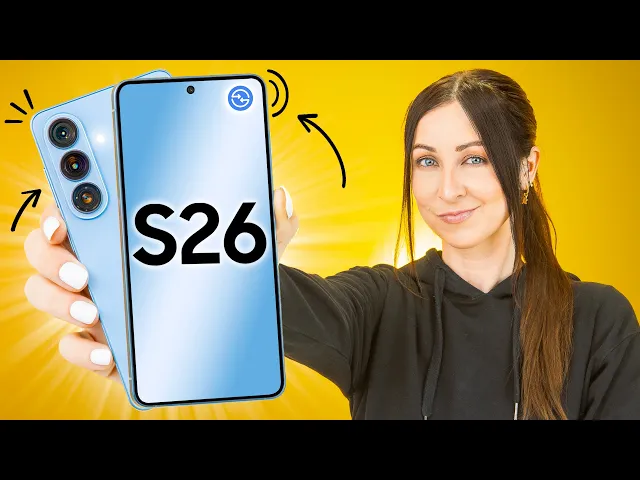
Samsung Galaxy S26 | S26 + TIPS, TRICKS & HIDDEN FEATURES!!!
Hayls World
0:00 From new AirDrop sharing, fun customization [music] tips,
0:02 home screen tricks, hidden features, and a few secret settings,
0:06 I'm going to show you how to make
0:07 the Samsung S26 the best phone you've ever had.
0:11 [music] Let's go.
0:15 Okay, let's start with some top new features on this bad boy.
0:18 First, if you head into settings, then connected devices,
0:21 now open up Quick Share, and haha, can you believe it?
0:24 Share with Apple devices.
0:26 Turn this on because now,
0:27 if you open anything up like a picture and just hit the share icon,
0:31 then Quick Share, check this out, you can now AirDrop to iPhones.
0:35 You just tap on the iPhone and boom, Samsung to Apple, baby.
0:40 What's so cool as well is on iPhones or Apple devices,
0:43 your Samsung will show up in their share sheet.
0:46 So, yeah, they can just easily share with you, too.
0:48 Finally.
0:50 Another new feature you may have heard of is inside the camera,
0:53 if you go to video mode, then tap this little icon and pick the third option.
0:57 Just like that, you've now activated horizontal lock.
1:00 And basically, once you start recording now,
1:02 you'll notice that the S26 keeps your video completely level,
1:06 no matter how much you tilt or rotate your phone.
1:08 Honestly, this is a wild camera magic that Samsung's got going on.
1:13 Now, this feature I recently discovered, it is so cool,
1:15 and you'll find it inside Samsung's Good Lock app.
1:19 And inside Good Lock, just make sure you download the Home Up tool.
1:22 Then open it, and in here, first, turn it [music] on, then turn on home screen,
1:26 open it up, and scroll right down until you see this option, large folders.
1:30 Turn it on, but also click on there and change this to custom.
1:34 Now, check it out, on your home screen,
1:36 if you tap and hold down [music] on any enlarged folder like this one,
1:39 you'll notice these little side handles, and if you grab and drag one,
1:42 you can resize [music] the folder to pretty much any size you want.
1:46 So, you could have it a really small
1:48 size and horizontal or much larger and still horizontal.
1:52 You could have it vertical like this and make it that smaller.
1:54 I mean, you guys get the gist.
1:56 You can pretty much resize it to however you like.
1:58 Oh, and that's only my first three tips.
2:00 I still got a ton more to show you guys, like how to do this with your keyboard.
2:08 [music] Okay, check this out.
2:10 Again, make sure Good Lock is installed,
2:12 then download and open the Keys Cafe extension,
2:15 and inside Keys Cafe, hit this keyboard icon and choose this gesture option.
2:20 And now, here is where we can create some custom keyboard gestures.
2:24 So, there's this two-finger swipe,
2:25 [music] and each direction does something different.
2:28 So, for example, for the up gesture, [music] I went with select all.
2:31 The down gesture, I chose copy.
2:34 Then, for the left direction, I chose to [music] go with paste,
2:36 and right, I chose to open the emoji keyboard.
2:39 Now, look at how cool this is.
2:41 On the keyboard, if I [music] swipe up, it selects everything.
2:44 If I swipe down, it copies it.
2:46 Then, I can go to another app, like WhatsApp,
2:48 and if I swipe to the left, it pastes everything.
2:51 I freaking love this.
2:52 And if you want to customize things even [music] more,
2:54 there's three-finger gestures you can set up, too.
2:57 For example, swipe up to move the cursor to the beginning,
3:00 or swipe them down to move the cursor to the end.
3:04 Pretty nifty.
3:04 There is a ton more you can do with Good Lock,
3:07 like this really sick unlock effect, which I'll get to a bit later on.
3:11 But for now, you've got to try these fun [music] new tricks out.
3:17 So, on the S26, there's this brand
3:19 new app that comes pre-installed called Creative Studio.
3:22 If you open this up, then tap create a sticker, and tap this picture icon,
3:27 the gallery pops up,
3:28 where you can choose a picture of yourself or a friend, pretty much anyone.
3:32 Once it's loaded, press this little icon,
3:33 and here you can choose a style, like pixel art.
3:36 Now, you just tap on generate, and your S26 will make a sticker of you,
3:40 which is actually a good representation,
3:42 but you can actually make full sticker sets by just picking a set option,
3:46 like this one called A Slice of Life, and boom, in a couple of seconds,
3:50 it creates a full set of stickers from just one photo.
3:53 Wow.
3:54 Then to use your sets, it's super simple.
3:56 Just open up the keyboard, [music] tap the emoji icon,
3:58 and all the way to the left-hand side, you'll see your sticker sets.
4:01 [music] Definitely try this one out cuz it's a lot of fun.
4:04 Another really fun feature inside the gallery is if
4:06 you open a pic and tap this [music] icon,
4:09 then at the bottom you get these various options, but if you tap create,
4:11 you can now type in what it is you want to change about this picture,
4:14 [music] like make it night.
4:16 Then you just click generate and bam, instantly it's done.
4:20 And literally every single time I do this, I am so amazed.
4:23 Another cool option is you could even say
4:25 change my background to a forest and voila, that's your new background.
4:30 And while you got the gallery open, let me show you a couple smart tricks
4:33 that I guarantee will make your life easier.
4:39 So, inside the gallery, go ahead and open the screenshot folder because now
4:44 everything is completely organized into different categories for you.
4:47 Nice.
4:48 So, if you're looking for a barcode or QR code,
4:51 it's super easy, they're all there.
4:53 Or maybe you're looking for a boarding pass, you just tap on that.
4:56 I mean, so useful.
4:58 There's even shopping screenshots,
5:00 like when you screenshot something from Amazon, and even location screenshots.
5:04 I mean, this is so nifty.
5:06 And on top of that, what you can also do is tap
5:08 the search icon and just type in anything you're looking for, like green TV,
5:12 and it'll instantly search through your screenshots
5:15 and find what it is you're looking for.
5:17 But, if you want to make your screenshots even better,
5:20 inside settings, you can go into advanced features,
5:22 then screenshots and screen recordings and toggle on this option,
5:26 hide status and navigation bars.
5:28 What this does is now when you take a screenshot,
5:31 that top bar and the navigation bar is both gone,
5:34 and only the important information is kept.
5:37 Way better.
5:38 But, probably one of the smartest tricks is actually inside the camera.
5:41 So, if you open up the camera in photo mode and point it at any document,
5:45 then hit this small little scan button,
5:47 Not only will it take a super clean crisp looking scan of your document,
5:51 but it'll also remove any fingers and folded corners from it.
5:55 Nice.
5:56 But now, here are some camera tricks that'll
5:57 make the S26 feel like the S26 Ultra.
6:05 [music]
6:05 Okay, so inside the camera app,
6:07 if you go to settings and [music] find video formats,
6:10 inside here you can turn on log, but if you tap on it,
6:13 you can make it for video and pro video modes.
6:16 So, if you're in the regular video mode,
6:17 now at the top you'll see this button called log,
6:20 which makes everything look super dull and grayed out.
6:23 But the trick here is when log is on, you get this lock button.
6:26 It gives you a whole bunch of different movie filters
6:28 to choose from, and my favorite one is definitely this Blockbuster one,
6:32 which [music] has a kind of teal orange action movie look to it.
6:35 There are three more options,
6:36 and compared to the normal video mode, these just look way cooler.
6:40 But another hidden camera trick [music] is with night mode,
6:43 because there's actually no dedicated night mode option anymore.
6:46 So, now what?
6:46 [music] Well, what you have to do is, as soon as it's dark,
6:50 you got to look out for this little icon,
6:52 and if you tap on it, and now you can turn on night mode.
6:55 You can keep it on auto, or this makes it the max amount of seconds.
6:58 Then you can just go ahead, snap a pic,
7:00 and you'll get a much better looking pic than without night mode on.
7:05 So, that's all pretty hidden, but these next tricks are even more hidden.
7:13 Now, we all know if you hold down on the side button,
7:15 you can open up either Bixby or Google Assistant.
7:18 But they are another three assistants now.
7:21 So, if you go into settings, then advanced [music] features, then side button,
7:25 and tap on long press,
7:27 you'll see the usual Bixby and Google Assistant, like normal.
7:30 But if you tap this little gear icon next to the Google option,
7:33 right over there, you get Perplexity.
7:35 And if you click on other apps,
7:36 you get the option to have Chat GPT or even Claude.
7:40 So, of course, just pick whichever one it is you want,
7:42 and now when you hold the side button, you'll get your brand new assistant.
7:46 And depending on which one it is you pick,
7:47 the interface does look slightly different.
7:49 Like with Perplexity, I don't know.
7:51 It just looks kind of futuristic to me.
7:53 Oh, yes.
7:53 And just keep in mind that you must have the ChatGPT
7:56 and Claude app both installed in order to get those options.
8:00 But, here's another hidden trick.
8:02 If you play a video on YouTube, for example, and the video must be playing,
8:05 then swipe down on the control panel,
8:07 you'll find this brand new audio erase option.
8:10 To turn it on, you just tap the little icon.
8:12 But, if you tap the text, it opens up some settings where you can crank
8:16 the strength to max and [music] even enable voice focus.
8:19 And now, any voices in the video you're watching will sound way clearer.
8:23 Grandpa, Grandpa just gives me the remote after we watch the Powerball.
8:30 Okay, so earlier I showed you this crazy unlock effect.
8:34 Well, here's how you do it.
8:36 The first thing you got to do is open up Good Lock again,
8:39 then go into LockStar, tap this LockStar button, then unlock animation.
8:43 Turn it [music] on, and now just pick one of these unlock effects.
8:46 There are so many different options to choose from.
8:48 Like, I really like this one and also warp.
8:51 But, what's even cooler is you can
8:52 customize each one of these effects even more.
8:55 There are loads of different settings you can play around with.
8:57 But, once you're all done, if you unlock your phone, boom, it looks so cool.
9:02 But, we're not done yet.
9:03 So, first make sure you've got a fingerprint unlock set.
9:06 Then, you're going to head into settings and under modes and routines.
9:09 Then tap this routines option and the plus icon right at the top.
9:13 Now, under this if section, you're going to scroll through all these different
9:16 options and choose the unlock with fingerprint.
9:19 Click [music] done, and under the then section, go ahead and find effects.
9:23 Then choose edge lighting effect and [music] customize this however you like.
9:27 I personally love a bold, vibrant, long-lasting effect.
9:31 [music] Click save, and now when you go to unlock your phone, check it out.
9:34 You've got this sick unlock effect and some slick edge lighting.
9:39 Wow, honestly this just adds that extra bit of personality to your S26.
9:43 So, definitely [music] try this out.
9:46 But now, onto some quick tips.
9:52 [music] Now, try this out with me.
9:53 Swipe down to the control panel,
9:55 tap the pencil icon, and you'll see these little handles.
9:58 Grab the handle on the volume slider and drag down,
10:00 then do it for the brightness, slide down.
10:03 Now, tap and hold then drag them both to the right hand side.
10:06 And just like that, you now made it
10:08 way easier to use both your brightness and volume.
10:11 The next quick tip, tap and hold down on your home screen, then go to settings,
10:14 scroll all the way down and turn on show finder on home screen.
10:18 Because now, you get this new little finder button on your home screen,
10:21 and you can use this to pretty much search anything,
10:23 whether that's photos, videos, heck, even Spotify songs.
10:27 Yeah, baby.
10:28 Yeah.
10:29 I also recommend that inside settings, if you go to notification,
10:32 then tap [music] on status bar, in here turn on show battery background.
10:37 It's off by default, and it just makes the battery icon look way better.
10:41 Am I right?
10:43 But possibly my favorite quick tip is [music]
10:45 make sure you subscribe to the channel,
10:47 so you don't miss videos like these, and join us on the road to 3 million.
10:50 I'll see you guys in the next one.
10:52 Toodles.