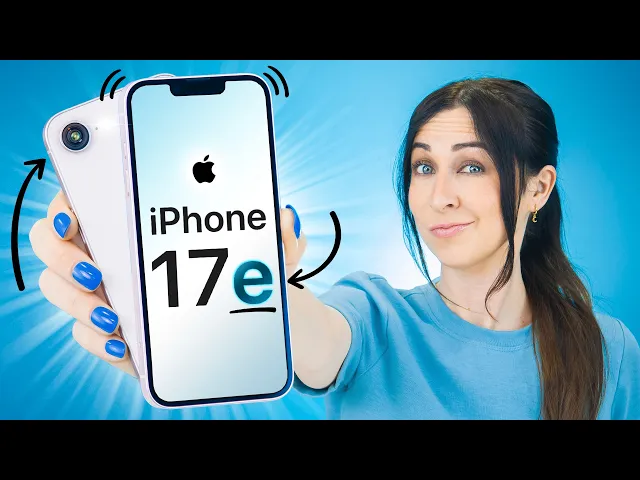
iPhone 17e - TIPS, TRICKS & HIDDEN FEATURES!!
Hayls World
0:00 This is the iPhone 17e.
0:02 This is the iPhone 17 Pro Max.
0:04 And even though the 17e is half the price,
0:06 it can do a lot of pro tips and tricks.
0:08 Like check this out.
0:13 Okay, so if you want to get some pro calls, then open up the settings,
0:17 scroll all the way down to apps,
0:18 and tap the P so that you can quickly get into the phone app settings.
0:22 Then you're going to look for screen unknown
0:23 callers and set this to ask reason for calling.
0:26 Because now the next time an unknown number calls you,
0:29 not only will the 17E pick it up, but it'll also ask why they're calling.
0:34 If you record your name and reason for calling,
0:36 I'll see if this person is available.
0:39 Then you can literally choose if you want to talk
0:40 to them or not without doing a single thing.
0:44 Perfect.
0:44 All right.
0:45 Then to turn the camera into a pro camera, you go back inside settings,
0:48 open the camera settings, and in here you're going to look for formats.
0:52 Once inside there, make sure you turn on resolution control,
0:55 cuz this is actually off by default.
0:57 And if you now open the camera, you'll see this new button right over here
1:00 that lets you switch between 24 and 48 megapixels.
1:04 I have no idea why this toggle isn't on by default,
1:06 but once you switch to 48 megapixel photos, they will look way more detailed.
1:10 And as for charging the 17e,
1:12 that's got a pro upgrade because it now has Mag Safe.
1:16 You can just slap a Mag Safe charger on the back now and boom,
1:19 it'll start charging your iPhone.
1:21 Or of course, you can use a MagSafe power bank.
1:23 Super nifty.
1:24 And of course, it even works with a bunch of different MagSafe accessories, too.
1:28 And I got even more pro tips and tricks like 3D photos,
1:31 gestures, custom ringtones, and a bunch more.
1:34 But before I show you all those, you got to see this hidden Face ID trick.
1:41 Okay, so this trick lets you have two different Face IDs.
1:44 So, first make sure you've got your own.
1:46 Then in settings, if you go to Face ID and passcode,
1:48 you will see this option, set up an alternative appearance.
1:52 Tap on that and then you're going
1:53 to hand your phone to, let's say, your partner,
1:55 it could be a best friend or even a family member, and it'll scan their face.
1:59 Now, here's what's so cool is you can unlock
2:02 the 17E with your Face ID just like before,
2:05 but they can now also unlock your phone
2:07 using their own Face ID that they just added.
2:10 This is such a nifty feature,
2:11 especially for having quick access to say your partner's phone,
2:14 maybe a child's phone, or even your grandma.
2:17 Mhm.
2:18 Okay, then the next hidden trick is
2:19 something everyone should turn on inside battery settings,
2:23 and that is this battery percentage.
2:25 Again, this is off by default.
2:26 I have no idea why, but it
2:28 just makes checking your battery percentage way easier.
2:31 Am I right?
2:32 And by now you guys should know about airdropping to other iPhones.
2:35 But I bet you didn't know the 17e can also airdrop to Android phones.
2:41 So if your friend or the other person happens to have a Samsung,
2:44 just tell them to turn on quick share and boom,
2:46 just like that, their phone pops up in the share
2:48 sheet and now you can share literally anything with them.
2:51 This is so much better.
2:53 And the best part is in your control center,
2:55 if you go to your AirDrop settings and set this to everyone,
2:58 you'll show up in their share sheet and they can share anything with you.
3:03 Easy peasy.
3:04 Yeah, baby.
3:05 Yes.
3:06 But what is also new on the 17E is custom ringtones.
3:14 All right.
3:14 So, to set up a custom ringtone,
3:16 you first have to grab an MP3 of your favorite song.
3:19 Then, just make sure it's saved to your files.
3:21 Now, what you're going to do is tap on the song, hit the share button,
3:24 and swipe up because right over here, you'll see this option, use as ringtone.
3:28 Now, when someone calls you, your totally free ringtone will play.
3:34 Sick.
3:35 But you can customize so much more.
3:37 Like on the home screen, if you tap and hold down, then hit edit and customize.
3:41 In here, you can change your app icons from small to large.
3:44 And basically, this removes the app labels.
3:46 And honestly, just makes everything look so much cleaner.
3:49 But we're not done yet because a lot of people don't
3:51 actually realize that when you change your icons from, let's say,
3:54 default to tinted or maybe even the clear glass icon look.
3:57 Right at the bottom here,
3:58 you can actually choose between having a light glass look or a dark glass look.
4:02 And the dark glass actually dims the wallpaper,
4:04 but with this icon, you can brighten it back up.
4:06 These are some minor tweaks, but depending on what look you're going
4:09 for, these can make a pretty big difference.
4:11 And for some final touches,
4:12 another thing a lot of people don't think to do is if
4:14 you go into the widget section and just add a photo widget,
4:18 make sure you choose the album option because
4:20 that way you can go into your gallery
4:22 and choose an album of inspirational quotes that you've
4:24 put together and display that on your home screen, which honestly looks so cool.
4:28 And with just those few changes,
4:30 you've given your entire home screen a slick new look.
4:33 And if you're wondering where you can get a cool quote like this, I
4:35 got a couple free for you guys that you can download from the link below.
4:39 But that's just the home screen.
4:40 Here's something you can try on the lock screen.
4:46 Okay, so this feature is so cool.
4:47 If you go to photos and open any picture,
4:50 on the top right, you'll notice this little icon.
4:51 And if you tap it, your pick literally turns into a 3D photo.
4:56 This is called spatial photos, and it works with any picture.
4:59 But there is a trick.
5:00 If you go into the gallery and select some
5:02 of your favorite photos and add them to a new album,
5:05 call it something like wallpaper, for example, and save that.
5:08 Then what you can do is head into settings,
5:10 go into the wallpaper settings, and tap on add a new wallpaper.
5:14 And you see this photoshuffle option.
5:15 If you choose that, go ahead and select the album you created.
5:19 But now just tap this little icon right over here.
5:22 And what this does is turns the entire album into a collection of 3D wallpapers.
5:27 And what's even cooler is the clock is also spatial.
5:29 So it interacts or changes depending on your 3D spatial wallpaper.
5:33 And it really does look so good.
5:35 But did you know the iPhone 17 also comes with free music?
5:43 Now, this is something I've never shown before,
5:45 but if you tap on your home screen, click that edit button, and add a widget.
5:49 When you scroll down, you'll see this brand new option, ambient music.
5:52 When you select it, you'll see there's two different size options.
5:55 I suggest you add this second one to your home screen because once that's done,
5:59 you'll see four options now.
6:01 Sleep, chill, productivity, and well-being.
6:04 Just pick one like a chill and it'll start playing
6:07 some chill music from Apple Music that is totally free.
6:11 So you don't need a subscription and it's pretty good music too.
6:14 Perfect for when you need to work, maybe study or just chill out.
6:18 Then another music trick is in the control center.
6:20 If you tap the plus icon and add another control, go ahead,
6:24 hit the search and find this one called recognize music and then add it.
6:28 It sounds super basic, but here's the really cool part.
6:31 If you're not connected to the internet and use it,
6:34 it'll say it can't find the song.
6:35 But once you're back online and everything is connected,
6:38 you'll get a notification of that song you were looking for.
6:42 Nice.
6:42 And before we move on, all the way back inside the app settings,
6:46 if you click the M and open up music,
6:48 scroll down and make sure that in here, animated artwork is toggled on.
6:52 Because now, next time you're on your lock screen
6:55 and you're listening to some music from Apple Music,
6:58 its album artwork will animate and it just looks way better.
7:01 And you know what else looks better?
7:03 Custom message backgrounds.
7:09 All right, now this is a lot of fun.
7:10 If you open up the messages app, go inside a chat,
7:13 and tap on a profile, you'll see this option, backgrounds.
7:16 There's a bunch of default options to choose from, but if you just hit photo,
7:20 you can pick any one of your photos from the gallery, like this one.
7:23 And voila, your chat will look way better.
7:26 Oh, and you'll know exactly who you're talking to.
7:28 Rock on.
7:29 But just keep in mind that whatever background
7:31 you set is actually shared between both phones.
7:34 And another way you can actually do this is if you
7:36 hold down on a pick that someone sent in the chat,
7:38 you can just choose this option to set that image as a background.
7:43 And another thing you got to try is in your keyboard.
7:46 If you tap the emoji icon, of course, you get all your standard emojis.
7:49 But if you tap this genoji option,
7:51 did you know you can combine two or even more emojis into a brand new one,
7:56 like a hurling poop, maybe?
7:58 So, I guess the next time you need an emoji that doesn't exist, just make it.
8:06 Okay, now here are three gestures that'll make using your phone way easier.
8:10 Number one is if you tap anywhere at the top, it'll instantly scroll up.
8:14 I literally use this gesture all the time and it works inside Instagram,
8:17 websites, and even the photos app.
8:19 Pretty much anywhere you can scroll up.
8:21 Okay, number two.
8:22 This is the shake to undo gesture.
8:24 And again, this works in a bunch of places.
8:26 For example, you can shake to undo a deleted photo.
8:29 Very handy.
8:30 You can also shake to remove text.
8:32 It also works with customizing your home screen.
8:34 So, if you moved a widget, just shake to undo.
8:36 I mean, you can even shake to undo closed tabs in the Safari app.
8:40 There really is a ton of places you can use this gesture.
8:42 And for gesture number three, inside photos, if you select a bunch of pics,
8:46 just tap and hold down and you'll see them all stuck together like this.
8:50 Now you can just swipe up to your home screen
8:51 and open pretty much any app like messages for example.
8:54 Drop them in there and quickly share.
8:56 And what's also quick are these next quick tips.
9:02 So when you press the volume up and side button, you get a screenshot, right?
9:06 Nothing new, but what is new to the 17e
9:08 is that you can search those screenshots.
9:11 All you do is just draw over what it is you're searching for using your finger,
9:14 then swipe up and it'll show you what it is.
9:18 So useful.
9:19 But what if you want to do the same thing with your camera?
9:22 It's actually really easy.
9:23 All you do is open your action
9:24 button settings and switch this to visual intelligence.
9:28 Now you just press the action button, it opens your camera, you snap a pick,
9:32 and it'll search what it is you just took a picture of.
9:35 Again, this is such a useful feature.
9:36 And on top of that, you can also
9:38 ask questions about what it is you're searching.
9:40 For example, I just asked if I could play games on this and bam, pretty handy,
9:45 but not as handy as hitting that subscribe
9:48 button cuz we're on the road to 3 million.
9:50 And I'll see you guys in the next one.
9:52 Titles.