New App Management Controls in Microsoft Intune
Microsoft Mechanics
0:03 Controlling the application layer on devices,
0:05 delivering the right apps, keeping them secure, up to date,
0:08 and protected has always been one
0:10 of the toughest challenges as you manage IT environments.
0:13 This is nothing new,
0:14 but what is new is how much easier Microsoft Intune now makes it.
0:17 With the latest built‑in app management enhancements,
0:20 you can more easily discover apps across your environment
0:23 with clearer visibility into your full app inventory per device,
0:27 simplify app preparation and deployment through
0:29 pre-packaged apps or with scripted installs,
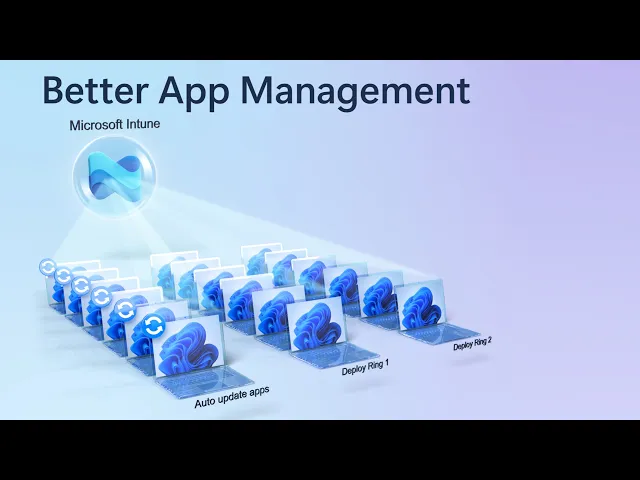
0:32 as well as safer, gradual app roll-outs using ring-based deployments.
0:36 Ensure only trusted apps run by automatically trusting deployed
0:39 apps through App Control for Business with Managed Installer,
0:42 and keep devices automatically on the latest
0:45 versions as vendors release updates,
0:47 using the new auto-update capability with your Enterprise App Catalog.
0:51 It all starts with knowing what apps
0:52 people have running on their managed devices.
0:55 And that's where the latest improvements to app inventory
0:57 in Intune give you the full up-to-date picture with minimal latency.
1:01 Here, for each device,
1:02 you can see a comprehensive list of inventoried applications,
1:05 including both managed and unmanaged apps.
1:08 Importantly, we've added more app metadata to help you
1:11 make better decisions about your apps or start troubleshooting.
1:14 For each app, you can see the publisher name,
1:16 architecture, and now even estimated size on disk,
1:19 as well as installed location, uninstall command, and languages,
1:22 as long as that information was registered in Windows.
1:25 For shared devices, we've also improved the per user
1:28 app information to include all users on the device.
1:31 This gives you clear visibility
1:32 into which applications exist in your environment,
1:35 to help you identify unknown or shadow applications
1:38 that may be running against your policy and governance controls.
1:42 Next, for getting the right apps deployed, let me show you how we've made it
1:45 easier to bring apps into your managed catalog.
1:47 Here, Enterprise App Management, or EAM,
1:50 is designed to simplify app lifecycle management.
1:53 I'm going to start by creating an app.
1:55 Unlike the consumer-focused Microsoft Store,
1:57 which uses community-driven WinGet app types for app discovery,
2:01 EAM provides a curated list of enterprise-ready Win32 apps.
2:05 You can find these apps by choosing
2:07 the Enterprise App Catalog app type and Confirm.
2:10 From there, you just need to search for the apps you want.
2:13 In this case, I'll look for Blender,
2:15 and then under Configuration, you'll find available architectures and versions.
2:19 You'll see that it pre-populates the app information.
2:21 And in the Program tab,
2:23 the install and uninstall command lines are pre-populated,
2:26 as well as the exit codes.
2:28 Now, this used a command line installer type,
2:30 but something new to give you even more control is the script installer,
2:34 which is now generally available.
2:35 This lets you use PowerShell script
2:37 to control the installation of your Win32 apps.
2:40 So, I'll change the installer type to be a PowerShell script,
2:43 and that will expose a control to upload a custom script as a PS1 file.
2:48 Next, I'll choose the Blenderinstaller script from File Explorer.
2:51 It conveniently enters the name field for me and then mounts
2:54 the script to give a preview of the pre-installation commands it runs.
2:58 This gives you precise control over the install
3:01 behavior of your apps using script-based installation.
3:04 And as we progress, the rest of the steps for getting
3:06 this app deployed to your managed devices should be pretty familiar Next,
3:10 for app roll-outs, Intune's policy-driven deployment lets
3:13 you introduce application changes gradually using Deployment Plans.
3:16 This helps avoid issues from misconfigured,
3:18 compromised, or unintended app updates,
3:21 giving you more control over the roll-out process.
3:23 Let me show you how to create a deployment.
3:25 You'll start in Deployments, which you'll find under Managed Devices.
3:29 At the top, you'll see two tabs: Deployments,
3:31 which lists the app payloads targeted for existing roll-outs;
3:34 and Deployment Plans,
3:36 which are reusable deployment schedules that you create with ring timing,
3:39 as well as assigned groups.
3:41 I'll move to the Deployments tab and select Create.
3:45 Then I'll give it a name, Global Secure Access Client,
3:47 and description, East Coast rollout, Next, I'll select a payload.
3:52 I'll choose Win32 and Add Payload, and select Global Secure Access Client.
3:57 Now I'll configure the deployment schedule,
3:59 which is the key step when setting up this deployment.
4:02 Here I can either build rings manually, where you'll add time offsets per ring,
4:06 or I can load an existing deployment plan.
4:09 In this case, I'll load a plan.
4:11 From here, I can choose the plan I want.
4:13 I'll pick the East Coast retail store rollout plan.
4:16 I'll choose a start date and add a time.
4:18 Once the plan loads, all the rings are added
4:21 with their timelines and associated groups or exclusions.
4:24 For example, this one has a one-week offset between each ring.
4:28 When I move to the last Review step,
4:30 this dialog on top tells me that, once created,
4:32 I can pause, resume, or cancel the deployment at any time.
4:36 From there, I can review my deployment and confirm by hitting Create.
4:40 Now my app will roll out based on this defined schedule.
4:44 Let's look at the latest capabilities for keeping your apps trusted.
4:47 First, App Control for Business with Managed Installer in Intune means
4:51 that apps you deploy using this method are automatically tagged as safe apps,
4:55 without manual allow-listing.
4:57 It lets you upload your app control policies as XML files
5:00 or leverage built-in controls to automatically
5:02 trust apps from the managed installer.
5:04 There's also a new option to target the Managed
5:06 Installer to specific groups where you enable Intune
5:09 Managed Extension as Managed Installer and scope the managed
5:12 installer to specific users with inclusion and exclusion policies.
5:16 Additionally, with Managed Installer
5:17 enabled during Autopilot device preparation,
5:19 you can ensure apps are trusted right
5:21 from the start as you provision new devices.
5:24 And using device preparation policies,
5:25 Autopilot also supports an increased app limit of up to 25 apps.
5:30 Of course, you can combine these capabilities
5:32 with Windows Defender Application Control together
5:34 with Intune to allow only trusted and approved
5:37 apps to run on your managed devices.
5:39 Now let's look at new ways to keep apps on the latest version.
5:42 First, with the new auto-update capability using the Enterprise App Catalog,
5:46 you can have Intune automatically keep apps up-to-date on your managed devices.
5:50 When you add a new app using the Enterprise App Catalog,
5:53 as part of the initial configuration in the Updates tab,
5:55 you can choose between Automatically Update and Update with Supersedence.
5:59 This is a one-time setting that allows Intune
6:01 to automatically install updates as they are published.
6:04 From there, once you confirm, you'll see that, by design,
6:07 many of the subsequent settings have been streamlined to just Scope tags,
6:10 Assignments and Review+ Create.
6:12 And if you want more control over app updates,
6:14 our second option, Guided Upgrade Supersedence,
6:17 automatically surfaces available updates of your deployed apps without you
6:21 having to go look for new versions of each app manually.
6:24 You'll see that, under Apps in the Monitor blade,
6:26 you'll find a new report called Enterprise App Catalog apps with updates.
6:30 By clicking into one of these apps,
6:32 you'll see that there is an update button in the upper left corner.
6:35 This lets you supersede existing app versions for that app
6:38 on managed devices in just a few clicks.
6:40 You'll see that all of the necessary information is pre-populated.
6:44 And this is the same with the program
6:45 tab and subsequent tabs in the app deployment workflow,
6:48 including the supersedence relationship.
6:50 Everything you've seen today is about
6:52 simplifying control of your application layer,
6:54 making apps easier to discover, deploy, trust from day one,
6:58 and keep automatically up to date, so you can deliver the right
7:01 apps securely and consistently across your environment.
7:04 To find out more, check out aka.ms/IntuneAppManagement Keep
7:09 watching Microsoft Mechanics for the latest tech updates,
7:11 and thanks for watching!