GitHub Copilot CLI Just Went Remote — This Changes Everything
James Montemagno
0:02 Oh, sorry about that.
0:03 Um, I was off actually doing some coding with the brand
0:05 new feature remote that's now available inside the GitHub Copilot CLI.
0:10 It's an awesome feature that actually enables you to start
0:12 a session on one machine and like I was just doing,
0:15 control that session from another machine when you're on the go.
0:19 Or for me, for example,
0:20 why this feature is so important is that I am doing a lot
0:23 of Windows development and Mac development
0:26 and I'm rotating between the machines.
0:28 This feature enables me to start a session directly on my Mac,
0:31 for example, with my application TinyClips,
0:34 which is a menu bar Mac application that needs
0:36 Mac build tools to actually verify the build itself.
0:40 I can start that session on the GitHub Copilot CLI and pick it up
0:44 directly on my Windows machine when I'm at work or when I'm on the go.
0:48 I can access it directly from the browser and send
0:51 the exact same controls and even interact with plan mode,
0:54 autopilot mode, and a lot more.
0:55 This is a killer feature that I'm super excited
0:58 that is coming out and I can't wait for the future of it as well as it comes out
1:01 of public preview and hopefully into GA into the future.
1:03 So, what I want to do is break it down,
1:05 show you what it looks like to use, and do some coding.
1:09 I think you're going to dig it as well, so let's get into it.
1:15 [music] [music] Okay, so here I am inside my Mac terminal.
1:24 We're going to go ahead and Copilot banner
1:26 this so I get the nice beautiful Copilot banner.
1:28 Boom, we're good to go.
1:30 All right.
1:30 So, in this TinyClips application, this is my Mac application.
1:35 So, I do need my Mac build tools and Xcode actually build and compile
1:38 this and that's really important as it's generating code to to do normal builds.
1:42 So, the first thing I'm going to do here is I'm going
1:44 to search around and look at some of the features that I have.
1:47 So, there is this feature that I want to implement,
1:50 you know, select and navigate single frames in the video editor.
1:53 So, I'm going to go ahead and tap on that and say,
1:54 "Let's come up with a plan." And we'll go into plan mode here.
1:59 Now, this is sort of my normal work stream, right?
2:02 I've opened my terminal, I'm getting to work.
2:04 Now, I could be, you know,
2:05 10 minutes in, 30 minutes in, an hour in, 50 minutes in, whatever it is, right?
2:10 And I'm coming with my plans,
2:12 I'm even doing implementation, and then kind of something happens.
2:16 And I need to go ahead and hand off to finish the work.
2:20 And I have a few ways of doing that.
2:21 And we're going to explore those here and use the new remote feature.
2:25 But, let's go ahead and figure out this plan
2:27 and see what we're going to implement here.
2:32 Okay, we're going to go ahead and uh,
2:34 answer a few questions and get our plan in place.
2:39 All right, our plan is here.
2:40 This is looking pretty good.
2:41 So, I'm able to then exit the plan mode, accept the plan, or suggest changes.
2:46 So, I'm going to exit plan mode.
2:47 I'm going to prompt it myself cuz one of two
2:50 things probably will have just happened at this point here.
2:53 So, in this case, I have my plan or I'm
2:55 working on work and I need to go do something, right?
2:58 I need to leave this machine, I got to go back to work.
3:00 I got to go off, uh, to do an appointment, right?
3:03 What am I going to do?
3:04 So, there's a few things I could do.
3:05 First, I could go in and I can say {slash} delegate.
3:08 Now, this is going to send the session to GitHub and the GitHub Copilot
3:12 coding agent and create a pull request
3:14 basically to implement this feature and functionality.
3:17 And this is a great feature.
3:18 I use it all the time,
3:19 especially from my mobile phone, to create new agent sessions.
3:22 The problem here is that these are going to be
3:24 kind of a Linux instances and it's going to be one-off.
3:27 It's not actually an interactive experience.
3:29 Well, it kind of is, you can steer it as it goes,
3:31 uh, but it's it's a handoff, right?
3:34 So, I'm handing it off if I want to delegate.
3:36 I love this feature.
3:38 So, that's one option.
3:38 Of course, I could just like resume this session later,
3:41 but let's go ahead and use the new remote feature here,
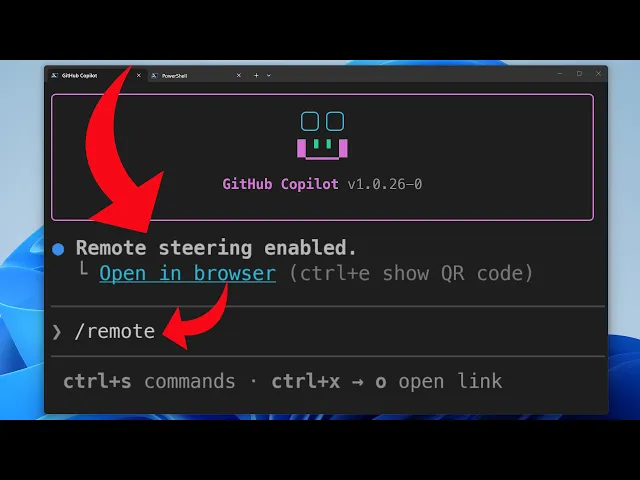
3:45 which is going to enable steering our session from the GitHub web and mobile.
3:49 So, here we get not only a link to remote steer.
3:55 I can also do control E and get a whole
3:57 QR code so I could pick that up on my phone, for example, which is huge.
4:00 I'd obviously minimize this down.
4:02 But, I'm also going to do something here is inside of our {slash} commands,
4:06 there are a bunch of features here as we can see,
4:09 but the one specifically that we're going to look for is keep alive.
4:12 And this is pretty nice if you're having a long-running session.
4:14 This was just released.
4:15 That's going to enable you to kind of prevent your system from going to sleep.
4:19 So, I'm going to say on and turn that on, too.
4:22 Now, it's not necessarily required, but it's a nice one here.
4:24 So, I'm going to go ahead and click on this and we're
4:26 going to be brought directly into that agent session here.
4:30 So, we can see that we have, uh, for all intents and purposes, our full session,
4:38 a bunch of other sessions that I've been running as well are right here.
4:41 So, we can see the full plan that's been implemented, everything like this.
4:44 Now, we also see that I'm in interactive mode.
4:46 I can do plan mode or I can do autopilot mode.
4:49 Let's say, "Hey, let's just build the app
4:53 to make sure it is in a working state." Okay?
4:58 Now, again, I'm here on my Mac
5:00 and I'm here directly interacting with this remote session.
5:05 And we can see that it's thinking.
5:07 If I pull up my terminal, we can see that it's thinking here, too.
5:10 And what we're seeing in real time is our terminal coming over,
5:16 interacting with this remote session here, and building the application.
5:21 Now, this is pretty neat, but again, I'm on my same local machine.
5:26 So, of course, if I'm managing different sessions in my browser, that's nifty,
5:30 but the real power is when you go to a different
5:33 machine where this is continuously being run over here.
5:36 So, let's head over to my Windows machine now and check that out.
5:40 Okay, so here I am on my TinyClips repo.
5:42 I went over to the agents tab and as we scroll down, we can see that, yeah,
5:47 I have a current terminal session plan for issue 58 that was created.
5:52 Now, here as we scroll down, we can see that the plan was approved.
5:55 We can see the build is green.
5:57 I'm going to say, "Hey, let's go ahead and implement that plan." So,
6:03 now on my Windows machine, directly back here in the browser,
6:07 I'm able to do interactive sessions and again,
6:10 I could go ahead and move into autopilot
6:12 or plan mode to carry on that existing session.
6:17 So, now it's going to take this plan and it's
6:20 going to do a full implementation and then at the end,
6:26 it is going to continue off and then build that project again.
6:31 And because the CLI in that session is running directly on my terminal,
6:38 it is able to then go ahead and build that application on my Mac,
6:43 which is crazy powerful.
6:48 All right, while that is off implementing features,
6:50 you can see here that it says only you can view remote sessions.
6:54 So, you can tap and get more
6:55 information here and understand access control, right?
6:58 So, these sessions, they're here in public preview
7:00 today and then you can also try this out
7:02 on mobile for TestFlight and Google Play
7:04 and that's going to land in the mobile application,
7:06 which is going to be one of my favorite ways of using
7:09 this to have access to my full Mac machine from my mobile device.
7:12 Now, as you can do it from the browser today as well.
7:14 So, you can see this all here as this is implementing and streaming in.
7:17 And what's happening is the CLI is going to go give updates back and forth.
7:21 If you also head over into the change log, you can read more about this.
7:25 Not only how I showed you how to use it today,
7:27 but you can also do Copilot {dash} {dash}
7:29 remote and just interactively start up that session.
7:32 And then you can go ahead on that repo and spin
7:33 up multiple of these sessions you're working on multiple features.
7:36 You can dive through this and more on how to update and how
7:39 to go ahead and spin up new sessions and leverage existing sessions.
7:44 So, again, if I wanted to, I could just say Copilot
7:46 {slash} {dash} remote and then get another remote session as well.
7:50 So, let's head back over to our Mac and see what's happening here now
7:52 that we can see that the implementation
7:54 is starting directly here on my Windows machine, but happening over on my Mac.
8:00 Okay, I'm back over here on my Mac and I'm just kind of switching
8:03 around machines cuz I actually have a single machine on my Mac mini setup,
8:06 which is on now, and then I have my Windows laptop
8:08 that I'm over recording on, switching back and forth and capturing.
8:14 So, here if we scroll down,
8:15 we can see that we're seeing file edits take place, right?
8:17 We can see all that in line whether I'm
8:19 here on my Mac machine or on my Windows machine.
8:22 And then we can also see the implementation continuing.
8:24 Now, it's only giving us certain updates, right?
8:26 If I was actually to bring over and see this here,
8:29 we can see there's a lot more things happening inside the terminal.
8:32 It's giving us the main thing here.
8:34 But, the important part here is that it's getting edits,
8:37 it's building, it's compiling, and seeing all that happen come over,
8:42 I'm just going to go ahead and say CD,
8:44 go here, say Copilot {dash} {dash} remote, just like that.
8:49 And now we're going to get another remote session spun up as well.
8:53 So, here I can have as many of these remote
8:55 sessions as I want ready to jump between them,
8:58 which is super super duper cool, right?
9:00 Implementing these features and jumping between Windows,
9:03 Mac, Linux, mobile, and so much more.
9:08 All right, there you go.
9:08 That is the new {slash} remote feature part of the GitHub Copilot CLI.
9:12 I'll link to the change log as well.
9:14 And of course, follow the GitHub change log on Twitter or on um,
9:19 the main feed for all the updates coming out not only in GitHub Copilot CLI,
9:23 but the entire world of GitHub and GitHub Copilot as well.
9:26 Uh, this is a a killer feature that I'm going to be
9:28 using every single day cuz I'm coding all the time on the go.
9:31 And being able to have a session linked on my direct machine,
9:35 giving me all the tools and capabilities there is super powerful.
9:38 Let me know if you're going to give this feature a try
9:41 in the comments below if you've already given it a try and what you think.
9:44 All right, this is going to do it for this video.
9:45 So, as always, if you liked it, thumbs up,
9:47 jam the subscribe button, and thanks for watching.
9:53 [music] Woo!